
About 7 minutes to read. Tool features and list prices checked on 12 October 2026; availability and checkout prices vary by region.
Making a short video once meant arranging a shoot, recording audio, finding footage and editing everything together. AI can now help one creator or a small team draft a script, create visuals, animate selected shots and produce a voice-over. The useful approach is to divide the work into stages and choose a tool for each stage, rather than asking one tool to make an entire finished video.
1. Think of AI as part of the production team
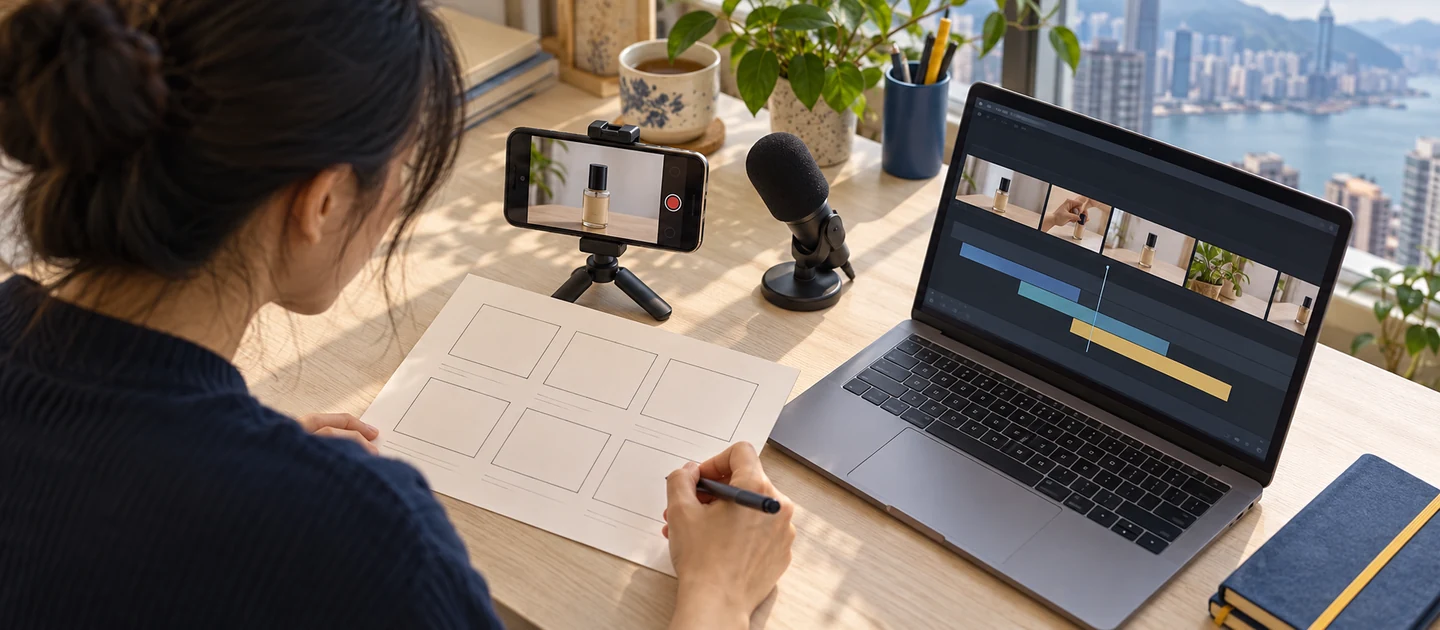
A practical workflow is: decide who the video is for and what it should say; write a script and shot list; gather images or real footage; generate only the motion shots you need; then edit, narrate and check the result.
Video generation is one step in that process. If the video introduces a mobile app, record the actual app interface so viewers can see the product. Generated video can provide a scene that would be difficult to shoot, such as a commuter finding time to learn during a busy day. Real product footage builds clarity; AI can add visual atmosphere.
Before you start, write one sentence: “What should viewers remember, and what should they do next?” For a language-learning app, the video might show a learner’s problem, demonstrate how the app helps, and finish with an invitation to try it. That single message guides the length, pace and choice of footage.
2. What does each tool contribute?
Ideas and script: ChatGPT can help outline the target audience, narration and shot list. Ask for the length, visual and voice-over of each segment; that gives you a more usable production plan than “write an ad.” You should supply and verify every product claim.
Images and visual style: Adobe Firefly can generate and edit images and offers video and sound features. It can help create a storyboard, backgrounds and campaign visuals. Midjourney can help explore a distinctive visual style; its Style Reference guide explains how reference images can guide a consistent look. Define colours, lighting, framing and references before making multiple shots. Generated images may distort real product details, so use original assets for important interfaces.
Motion shots: Runway Gen-4.5 supports text-to-video and image-to-video. Its guide lists a duration of 2–10 seconds per generation. Google Flow offers AI video creation and scene-building tools. These are useful for openings, transitions and concept shots. A two- or three-minute finished piece will usually combine short generated clips with real footage. Allow time and credits for retries.
Voice and editing: ElevenLabs turns narration into speech. CapCut brings footage, music, captions and text onto one timeline. For interviews or talking-head videos, Descript lets you edit audio and video by editing a transcript. Check the pronunciation, tone and usage rights of an AI voice; recording your own narration is also an option.
There is no need to subscribe to every category at once. Make a test video first, identify the slowest or weakest production step, and spend money there if it helps.
3. A 150-second video: workflow and example budget
Imagine a 150-second product introduction. Start with five or six sections: hook, problem, solution, real demonstration, one concrete benefit and a call to action. Turn the narration into a shot list. Mark which moments need real screen recording, a photograph, a still image or AI animation.
Prepare visual references next: product screenshots, brand colours and a few key images. If you already have a strong still image, image-to-video gives the shot a clear starting point. Adobe’s tutorial explains how to guide a result with first and last frames and camera movement.
Then generate and edit. You could use ten five-second AI clips, or 50 seconds in total, and fill the other 100 seconds with actual product recording, captions, photographs, charts or footage you shot. Add narration, music and captions after a rough cut. Watch on a phone: is the text readable, is the opening too slow, and does the story still work with the sound off?
Here is an illustrative one-month software budget at monthly billing rates, not a fixed cost per video:
- Images: Adobe Firefly Standard lists US$9.99 per month, with standard image generation and 2,000 generative credits for premium features.
- Video: Runway Pro lists US$35 per month with 2,250 monthly credits. Gen-4.5 costs 60 credits for five seconds. Ten shots, generated three times each for selection, require 10 × 3 × 60 = 1,800 credits, leaving 450.
- Voice: ElevenLabs Starter lists US$6 per month and includes a commercial licence. Recording your own voice removes this subscription from the example.
- Editing: Try CapCut’s available free tools first. For paid features, check its pricing page and your local checkout price.
The three paid subscriptions add up to US$50.99, or about US$51 for one month, before tax, extra credits, paid music or stock assets, and your own time. This example assumes only 50 seconds of AI animation and up to three attempts per shot. More retries, or generating the entire film, will cost more. Runway’s credits guide shows that other models and features have different rates.
4. How can a business use the result?
A full introduction can appear on a homepage, product page, sales presentation or trade-show display. Cut 15- to 30-second versions to test different openings and messages on social media. The same footage can become a vertical clip, a captioned version for silent viewing, or a version narrated for another audience.
For example, a café could film a new drink once, then make three edits: how it is prepared, how it tastes, and a limited-time offer. This is a production example, not a claim about an actual café’s results. Measure more than views: did people see the key message, click through, enquire or buy?

Check rights before commercial use. Runway says it does not impose non-commercial restrictions on content you make there. Adobe explains commercial use of Firefly outputs, while individual features and partner models may have additional terms. Midjourney’s terms set a plan requirement for companies above US$1 million in annual revenue. You also need rights to use real people’s likenesses, logos, music and any footage or images you upload.
5. Two prompts you can use
Plan the whole video:
I need a roughly 150-second promotional video for people who have never heard of my product. First propose one core message and a clear call to action. Then list the shots. For each shot, include duration, visual, narration, on-screen text, and whether it should use real screen recording, filmed footage, a still image or AI-generated video. Limit generated video to 50 seconds in total. Flag product details that I must verify; do not invent features or results.
Generate one shot from an image:
Use the supplied image as the first frame of a five-second video. Keep the main subject’s appearance and position. The phone on the table lights up slightly as a person walks naturally through the background. Move the camera slowly forward in soft morning light. Keep the motion continuous. Do not add captions or a new logo.
The second prompt states the subject, action, camera movement, light and duration. Adapt it with Runway’s image-to-video prompting guide and camera examples.
If you make videos for the same brand repeatedly, Codex’s $skill-creator can help you save the brand voice, colours, shot-list format, rights checks and delivery specifications as a reusable video-production Skill. The official Skills guide explains how to create one.
Start with a test film
Your first video does not need every shot generated by AI. Set one message, finish the script and shot list, and generate only the scenes that are difficult to film. A test cut combining real product footage, selected generated shots and clear narration will show whether your next improvement should be in the message, the visuals or the cost.
Prepared on 12 October 2026 from the official sources linked above. Features, limits, prices and terms can change; check them again before subscribing or using content commercially.
Join the discussion
CommunitySign in to share an idea or question. Comments appear after review.
Sign in to comment